Tutorial: Enabling the View Design Button in the Theme Editor
This tutorial explains how to enable and configure the View design button in your Shopify theme so that customers can preview their Autopictura-generated design on the order-status page and the thank you page (after checkout).
Overview
When customers use Autopictura to create a personalized product design, the View design button opens the designed image in a modal on the order-status page and the thank you page (after checkout). Enabling this in the theme editor makes the button visible and configurable without editing code.
Prerequisites
- A Shopify store with the Autopictura app installed
- A theme that supports the Autopictura “View design” block or app embed
- Access to Online Store → Themes and the theme editor
Step 1: Open the Theme Editor
- In your Shopify admin, go to Online Store → Themes.
- On your current theme, click Customize to open the theme editor.
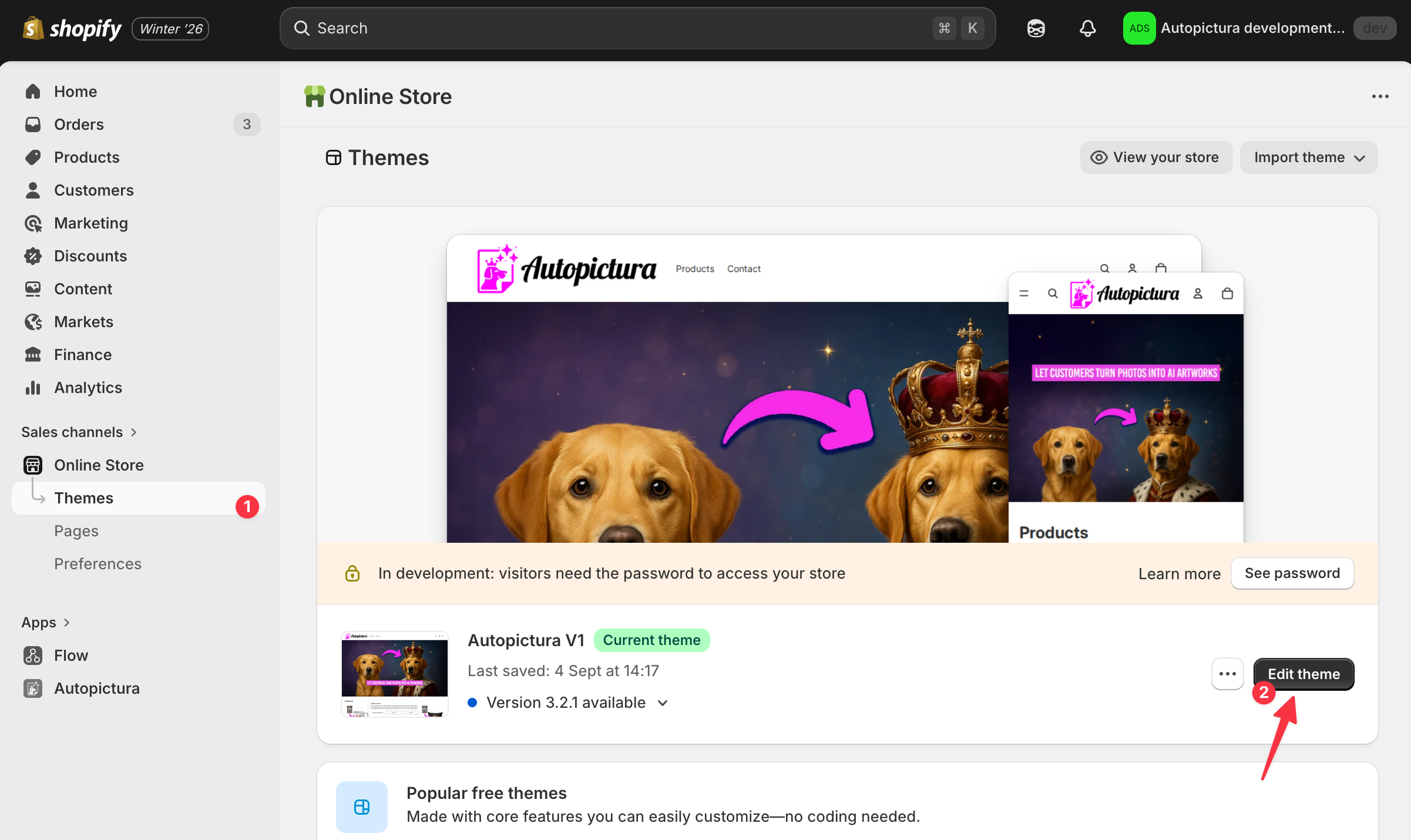
You’ll land in the theme editor with a preview of your store and a left-hand sidebar for settings.
Step 2: Locate the Section or Template That Shows the View Design Button
The View design control appears on the order-status page and the thank you page. You enable it per template in the theme editor.
- In the theme editor, use the dropdown at the center top to switch between Home, Product, Collection, Cart, etc.
- Choose the Order status or Thank you template (or the equivalent in your theme).
- In the main content area, click the section where order details or confirmation content is shown.
- In the left sidebar, look for an App blocks or Apps area, or a block named Autopictura / View design.
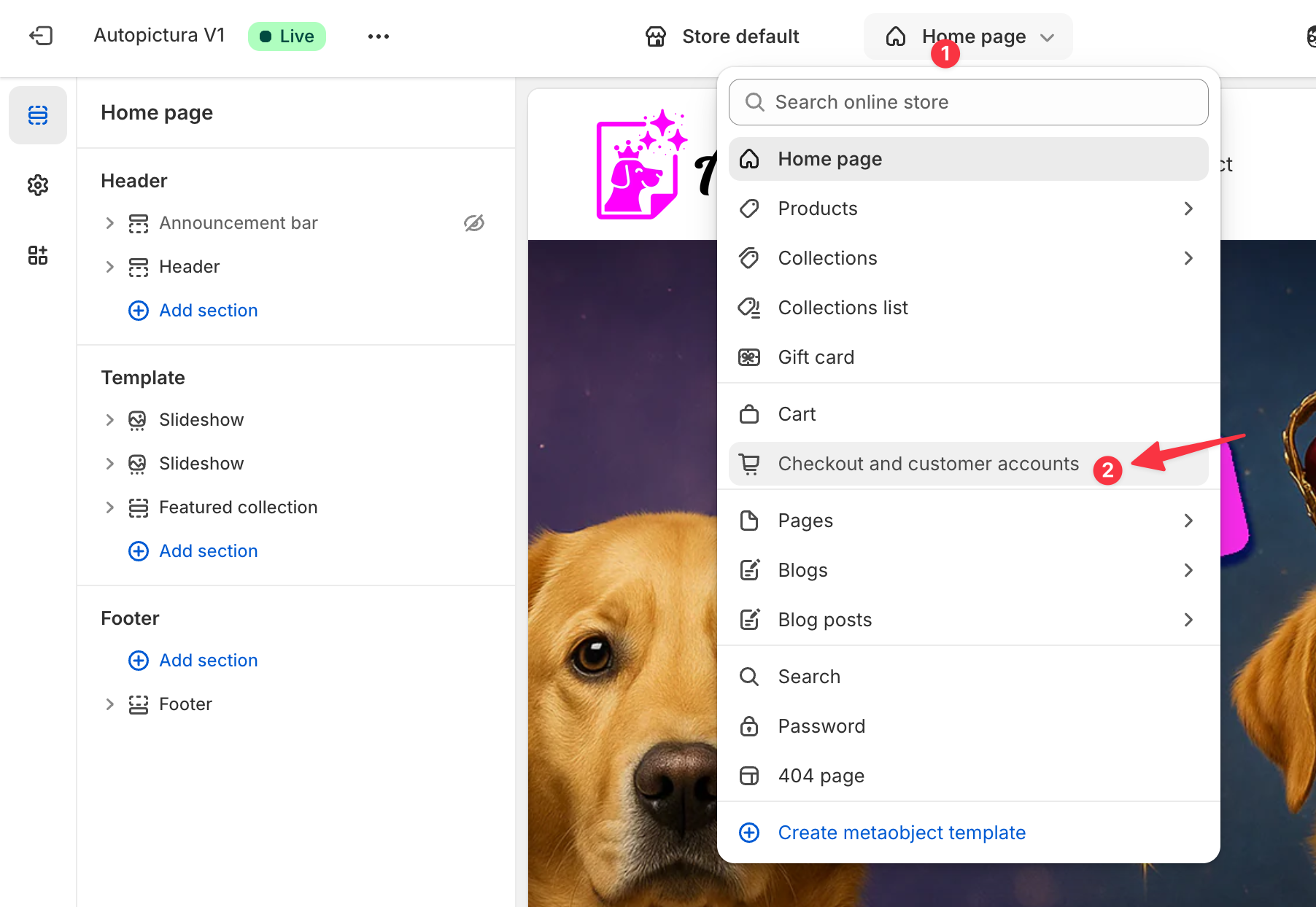
If your theme uses app blocks, the View design option is often listed there and can be toggled or added.
Step 3: Enable and Position the View Design Block
- In the section you selected, find the View design block or app block provided by Autopictura.
- Turn the block on (enable it) if it’s currently disabled.
- Use Move up / Move down (or drag and drop, if your theme supports it) to place the button where you want it on the order-status or thank you page.
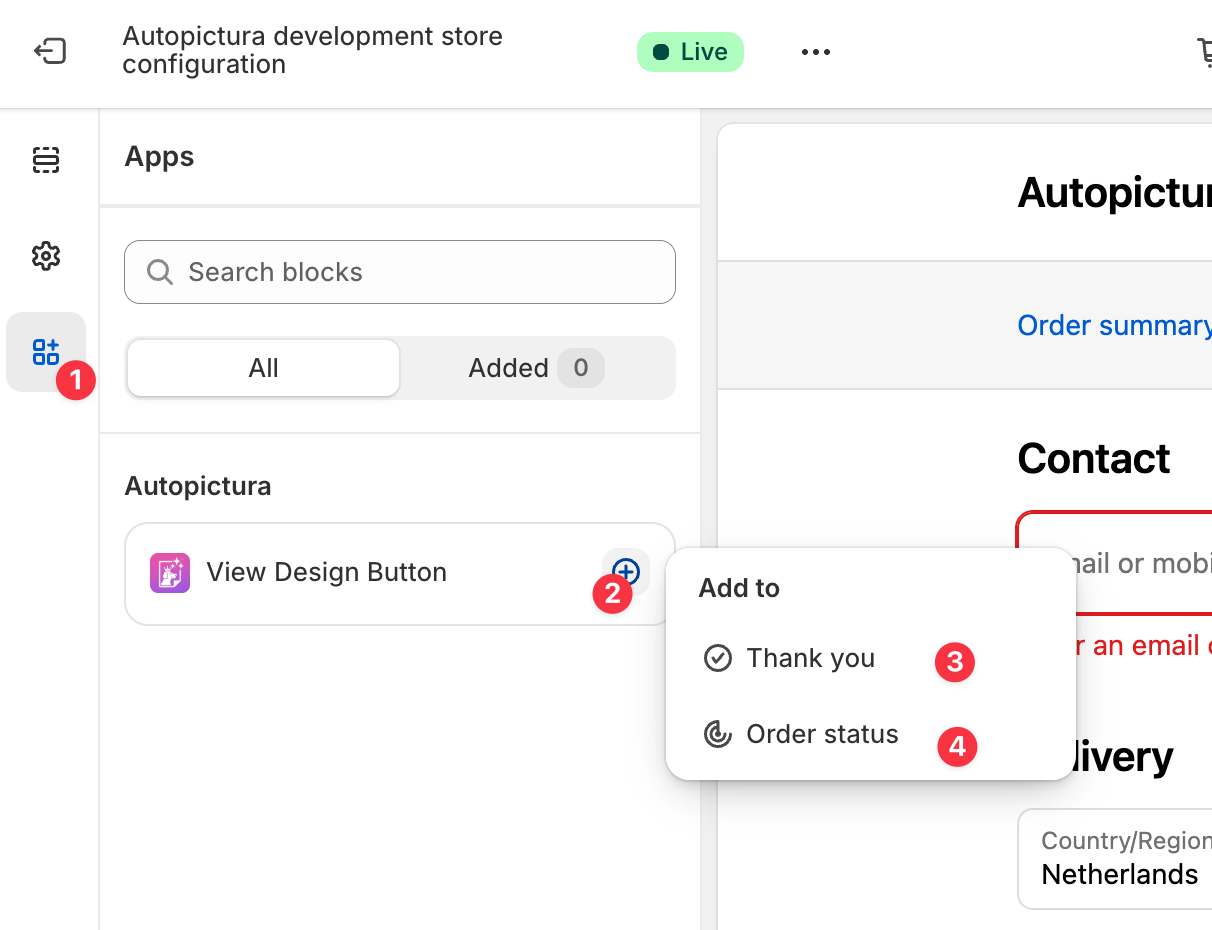
- If the block has settings (e.g. button label or style), adjust them in the sidebar.
- Click Save in the top-right of the theme editor.
What Customers See
Once the block is enabled, customers who have generated a design with Autopictura will see a View design button in the place you configured.
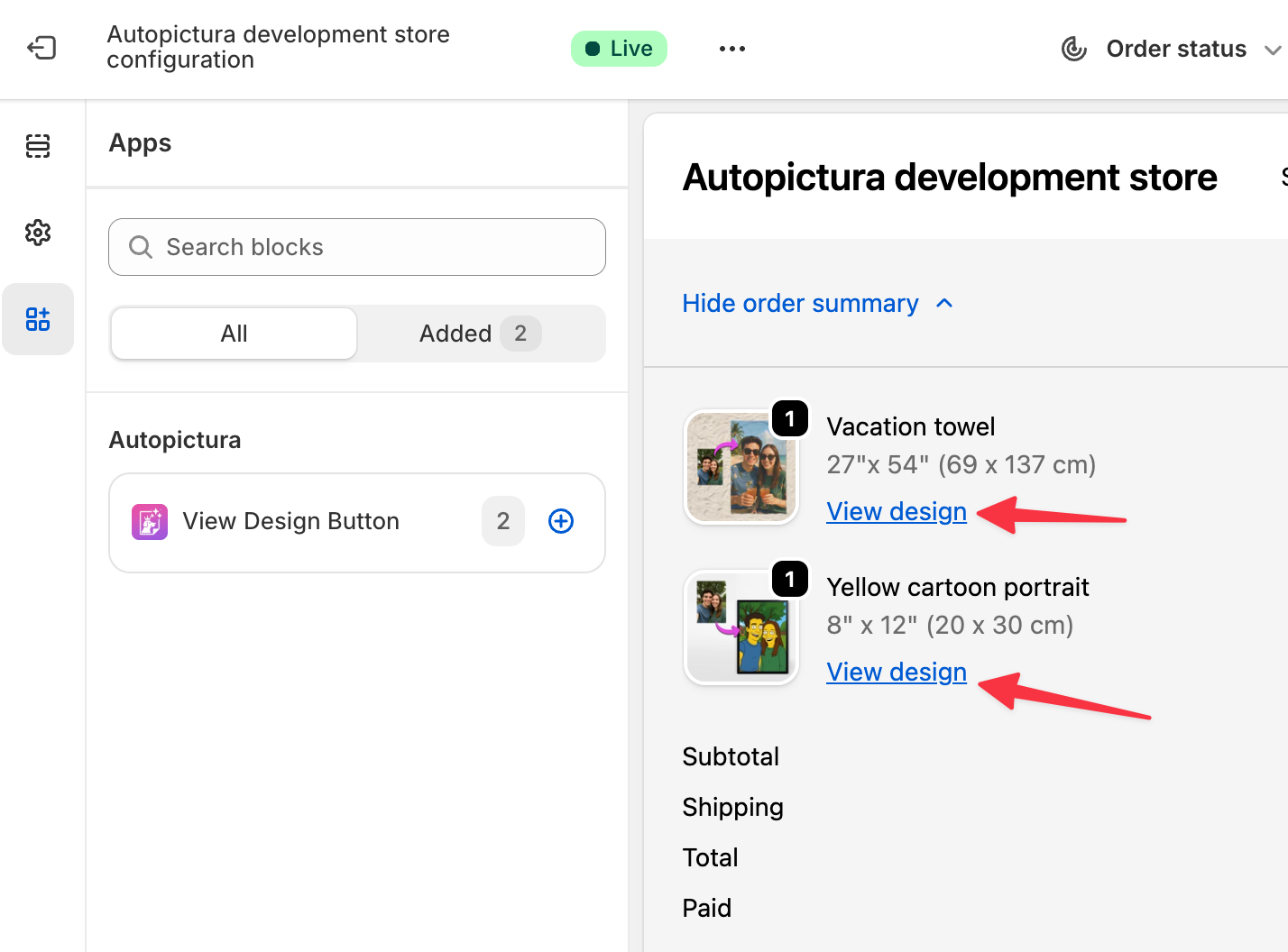
Clicking it opens the designed image in a modal.
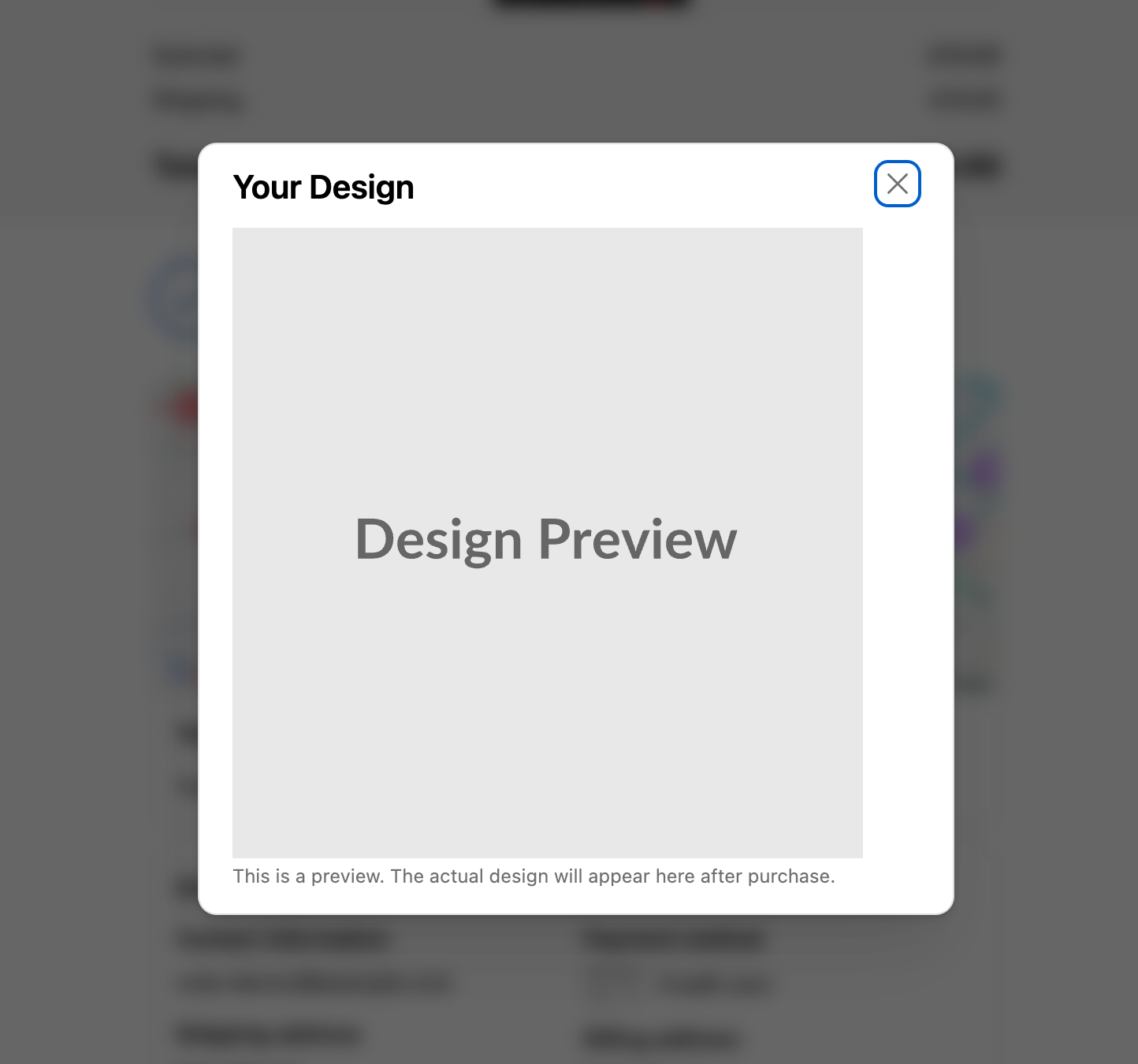
This gives customers a clear way to check their design after completing the order.
Conclusion
By enabling and positioning the View design block in the theme editor, you give customers an easy way to preview their Autopictura-generated design on the order-status page and the thank you page (after checkout), which can reduce uncertainty and support questions and improve conversion.